Lock and login
The lock screen
Section titled “The lock screen”SUPER L locks the session, and the shell draws the lock itself through the compositor’s session lock, so a shell that crashes leaves the machine held rather than open.
At rest it is the clock alone: the date over the time, the hours over softer minutes. The island sits at the top, where the bar has it, holding a padlock, and the battery ring is in the top right corner. The desk stays behind it, blurred enough that text on it cannot be read.
Any key wakes it, and that key only wakes it: it is not typed into the password, so a space pressed to open the screen is not a first character. A lone Shift or Caps Lock does not wake it; a click does, and so does opening the lid.
- Awake, the clock rises and steps back, and one black pill comes up with your picture, your name and “Enter your password” — “Face unlock or password” where face unlock is set up.
- From the first character, the pill stretches into the field.
- Restart and shut down are in the bottom-left corner while it is awake, each armed by the first click and run by the second.
The password goes through PAM’s login configuration, so hyprlock is not
needed. A wrong one shakes the pill and says why under it. Escape
clears the field and puts the screen back to its clock, and so do 30 seconds
untouched, never while a password is being checked. Unlocking fades the type
and relaxes the blur, so the desk is what is left when the lock falls; with two
screens the blur stays.
Settings → Session → Lock screen holds You: your account’s name and picture, for both screens at once — click the picture, or drop an image on the card, and type the name. Your picture says where they go. Under Clock, Style is Stacked, Inline or Flip: hours over minutes, both on one line, or a black card for each part of the time, split at a hinge, whose top folds down over the new figure as it turns. The login screen always draws it stacked. Under Background, the Blur is 8 to 64 px, previewed over the wallpaper.
Music on the lock
Section titled “Music on the lock”While something plays, the lock shows it. The clock moves up to where it sits when the lock is awake, and the middle of the screen takes the cover, the track, its progress and the controls, with the lyrics beside them if you want them, the line being sung level with the cover. The controls work from the lock; a click on them also wakes the screen, as any click does.
Settings → Session → Lock screen → Music chooses what it shows:
| Setting | Choices |
|---|---|
| Show | Nothing, The player, or With lyrics, the default |
| Behind it | The cover, the default, blurred into a wash of its colours, or The desktop, as the lock draws it without music |
The lyrics follow the Look them up switch under Settings → Modules → Lyrics (Lyrics). On a short screen the player is drawn smaller to fit between the clock and the pill. The login screen has no session and shows no music.
When you leave it alone
Section titled “When you leave it alone”The shell is its own idle daemon. Settings → Session → When you leave has three waits:
| Slider | What happens |
|---|---|
| Lock after | The session locks |
| Screen off after | The screen switches off |
| Suspend after | The session locks, then the machine suspends |
Each is in minutes, from 0 to 60, and 0 reads Never. All three are off until you set them. A video player, or a browser playing full screen, asks the compositor not to count as idle, and nothing happens while it plays. Suspend always locks first, and is skipped if the lock does not come up.
Every sleep locks first, not only these: shutting the lid, a suspend key,
systemctl suspend. The shell asks the system to wait before sleeping, locks,
and lets it sleep once the lock is up, so the machine never wakes on the desk.
With a monitor plugged in, shutting the lid does not sleep and so does not
lock.
The screen comes back with the next key or movement, and SUPER SHIFT D switches it off and on by hand.
Face unlock
Section titled “Face unlock”With an infrared camera, the lock opens for your face. ./setup face
finds the camera by the 8-bit grey picture only an infrared one gives,
installs howdy-next from the AUR, points it at that camera and asks to enrol
your face. ./setup install runs it once and skips a machine without one.
Settings → Session → Face unlock keeps the faces. It says whether the
machine has an infrared camera, lists the faces howdy knows with Remove
beside each, and Add a face looks at the camera with the lock’s own ring
turning in the card. Try it runs the lock’s own check without locking, so
a match there is a match on the lock. Adding or removing a face asks for your
password, since a face added is a way into your session; listing them does not.
Where howdy or its helper is missing, the same row offers Set up or
Finish setting up, which run ./setup face or ./setup system in a
terminal.
howdy looks through a PAM service of the lock’s own,
/etc/pam.d/impasto-face, beside login rather than inside it: a face it does
not know never costs a password try, and the password never waits on the
camera. ./setup system installs that file, and install does it unless
--skip-system.
- A scan starts when the lock wakes (a key, a click or the lid opening) and again, while it is awake, on the pointer moving or Enter on an empty field. Never at rest and never by itself, so a nudged mouse does not turn the camera on, and the face that has just pressed SUPER L does not open it again.
- While it looks, the island grows under the camera and a ring of ticks turns round the padlock. A match closes the ring in green and opens the padlock; a miss turns it red and shakes the island.
- After a miss it waits a second and a half. After three, only Enter on an empty field asks again.
- The password works all along, at rest or awake.
- Going back to rest stops a scan under way.
Only the lock uses it: the login screen, sudo and polkit still ask for the
password. The lock offers the face only when one is enrolled. sudo howdy config opens howdy’s own settings: how sure a match must be, how long it
looks, which camera.
The login screen
Section titled “The login screen”The login screen is the lock with the desk taken away: an SDDM theme with the same stacked clock, the same pill and the same two stages, over a painting of brush strokes blurred and darkened as a whole. It has no island: there is no face to scan before a session, so the clock and the pill stand alone. It does not follow the palette, because it comes before there is a user to have chosen one.
- At rest it is the clock alone. A key wakes it and is kept as the first character, and a click wakes it too; Escape or 30 seconds untouched puts it back.
- One pill holds the account and the field. With more than one account, the picture is the account picker: pressing it opens the list above the pill. Escape closes an open list before it rests the screen.
- A refused password shakes the pill and empties the field.
- The session is chosen in the bottom-right corner, and restart and shut down are in the bottom-left, both only while it is awake. The power buttons are armed by the first click and run by the second. There is no suspend.
- The battery ring sits in the top right, read straight from the battery.
- The line under the pill says when Caps Lock is on.
The account and session lists take the pointer only; the keyboard stays in the field.
How it starts
Section titled “How it starts”./setup install switches it on, unless --skip-system: it copies the
theme into /usr/share/sddm/themes/impasto/, names it in
/etc/sddm.conf.d/10-impasto.conf, and enables sddm where no display manager
is enabled yet. The login screen comes up at the next boot.
A machine that already starts another display manager keeps it. To change,
disable that one, then run sudo systemctl enable sddm.
SDDM reads the files in /etc/sddm.conf.d/ in name order and /etc/sddm.conf
last, each over the one before, so a theme named in a file that sorts after
10-impasto.conf wins. Leave 10-impasto.conf as it is: setup owns it.
To try the theme without logging out, run its test mode from the repository’s root. It reads the repository directly, so a change can be tried before it is installed:
sddm-greeter-qt6 --test-mode --theme system/usr/share/sddm/themes/impastoYour picture
Section titled “Your picture”The picture on both screens is /var/lib/impasto/faces/<username>.face.icon,
and Settings → Session → Lock screen → You puts it there: the image you choose is made a
256 px square and written through a small helper, without a password. Without
one, both show your initials. setup makes the folder and never removes it.
It is kept outside your home because SDDM reads as its own user and cannot see
into it.
The helper takes the picture itself, never a path, so it cannot be used to copy
a file only root can read. It arrives with ./setup system; before that, the
picture chosen in Settings shows on the lock screen alone, and the card says
so.
The name is your account’s full name, which both screens show, or the
login name when there is none. Typing it in Settings changes it on the account,
through AccountsService, as chfn would.
The boot splash
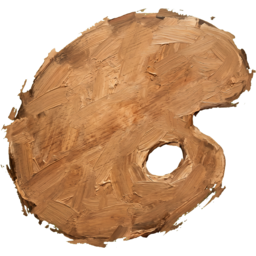
Section titled “The boot splash”While the machine starts, the boot splash paints the palette board: the login screen’s painting blurred, the board and the name in the middle, and a daub of paint landing on the board for every fifth of the boot. A disk password lifts the board and brings in the login screen’s pill, with a dot for every character typed. Shutting down and restarting show the board fully painted, with a word for which it is. It is a Plymouth theme, and like the login screen it does not follow the palette.
./setup install sets it up once, unless --skip-extras, through
./setup splash, which asks for your password. It names the theme, adds
splash to the kernel command line for systemd-boot, a unified kernel image
or Limine, and rebuilds the initramfs, which takes a minute. GRUB gets the
argument from a drop-in, and the initramfs gets Plymouth from another, right
after udev or systemd, so it comes up ahead of a disk password; neither
edits the machine’s own configuration, and ./setup uninstall takes them away
and puts the default theme back. The splash shows from the next boot.
What the two screens do not do is listed under Limitations.